List of Action required in application
note
Before you begin, please ensure you are logged in to WorkFx. If you need help, see the WorkFx login guide.
Overview
This page lists actions required for Job Permit and Permit To Work applications.
Steps
1: Access Permit Application
- Please apply the Job Permit Application step 1-2 before proceeding with these steps.
- Follow the shared navigation to open the permit application area and the Apply menu.
- Draft
- Job Permit
- Permit To Work
2: Open Job Permit Draft(s)
- Click
Job Permit Draft(s)underMy Applicationin the left menu.
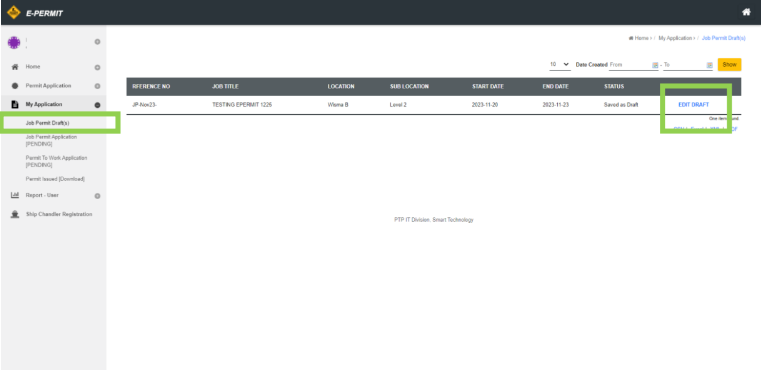
Notes:
- User can click on
EDIT DRAFTto edit a draft.- Draft submission is available for 48 hours only.
2: Open Job Permit Application [PENDING]
- Click
Job Permit Application [PENDING]underMy Applicationin the left menu.
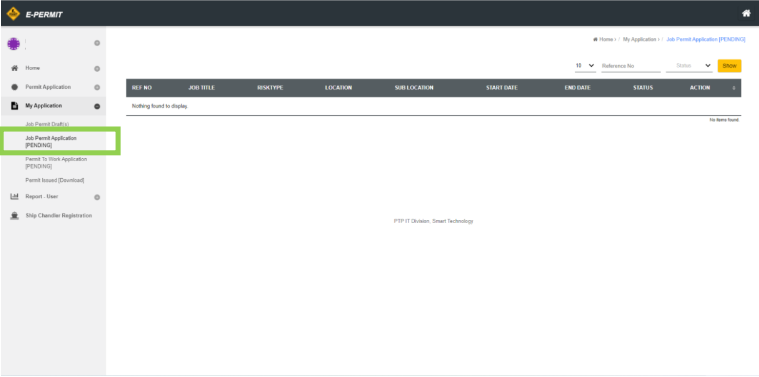
Action Details
| Action | Details |
|---|---|
| Pending Resubmission | Job Permit pending user resubmit application due to rejected by any approver (Job Owner/Area Owner/HSE) |
| Make Payment Pending | User to make payment for submitted Job Permit |
| Check Payment Status | Job Permit pending payment verification from user, to check either payment success or fail |
2: Open Permit To Work Application [PENDING]
- Click
Permit To Work Application [PENDING]underMy Applicationin the left menu.
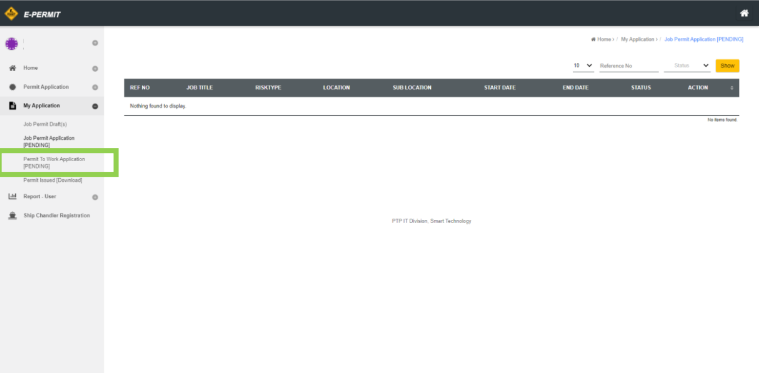
Action Details
| Action | Details |
|---|---|
| Pending PTW Resubmission | PTW pending user resubmit application due to rejected by any approver (Area Owner/HSE) |
| PTW Pending User Close Out | PTW pending user to do a close out inspection after doing work |
info
Both actions are part of the same application monitoring module and reuse the same shared navigation flow.
Related Guides
- Job Permit Application — Submit a Job Permit application.
- Permit To Work Application — Submit a Permit To Work application.
- Monitor Submitted Permit Status — View the status of submitted permits.
- Permit To Work Close Out Inspection — Complete close-out for approved PTWs.