Permit To Work Application
note
Before you begin, please ensure you are logged in to WorkFx. If you need help, see the WorkFx login guide.
Overview
This guide explains how to submit a Permit To Work (PTW) application using the E-Permit system. Shared steps from Job Permit Application are referenced to avoid repetition.
Steps
1: Access Permit Application
- Please apply the Job Permit Application step 1-2 before proceeding with these steps.
- Follow the shared navigation to open the permit application area and the Apply menu.
2: Select Apply Permit To Work
- Click
Apply Permit To WorkunderPermit Applicationin the left menu.

3: Complete the PTW Application Form
- Fill up the PTW Application form and click the button at the bottom of the page.
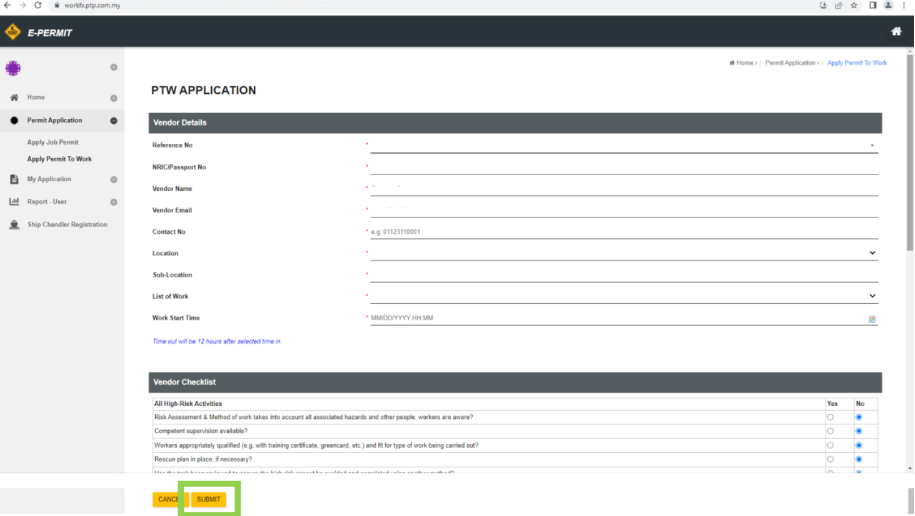
Note: Reference No field only lists Job Permits with high-risk activity that have been issued.
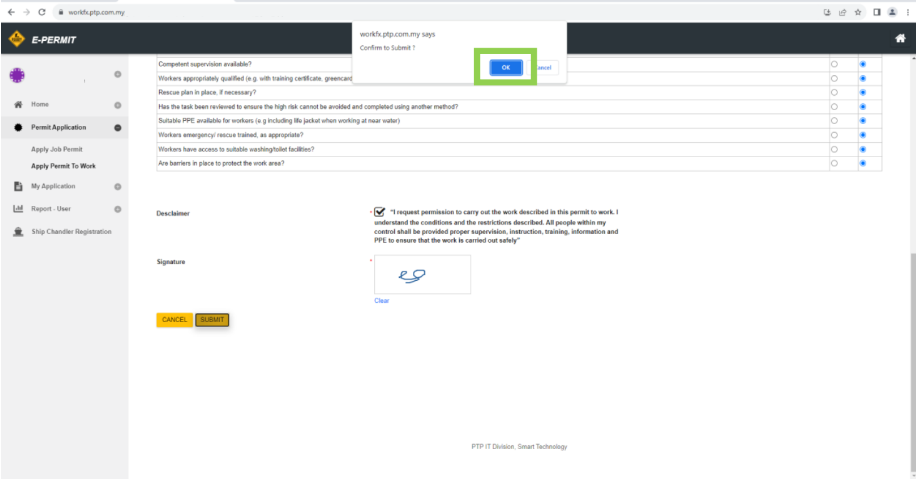
4: Confirm Submission
- Click the confirmation button on the dialog box and wait for the page to load.
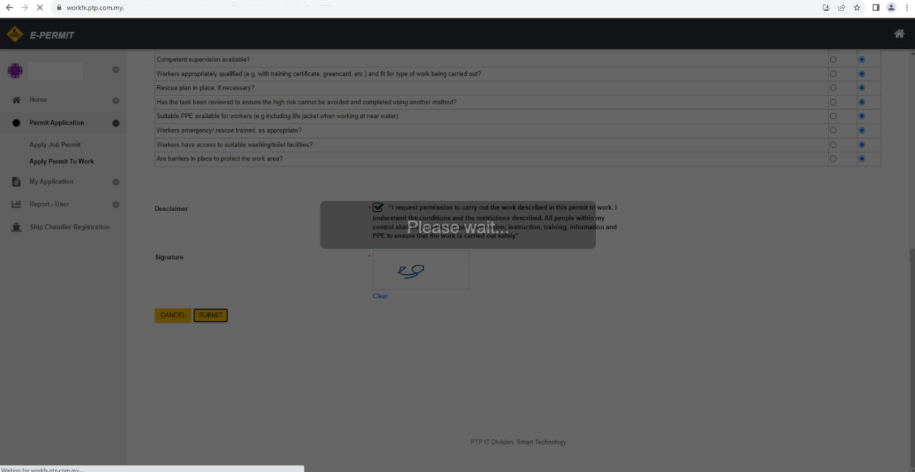
5: Wait for Page Load
- Wait until the next page finishes loading.
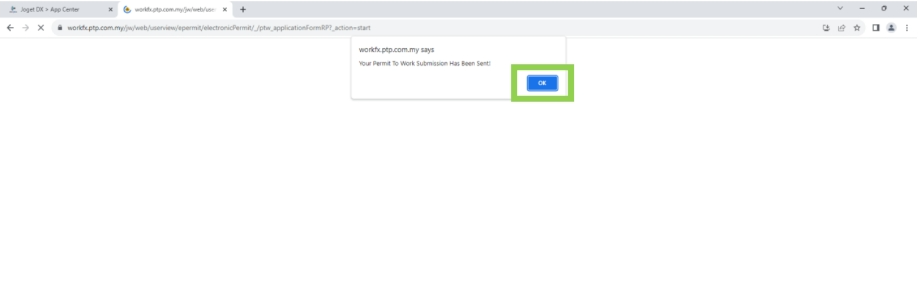
6: Final Dialog Confirmation
- Click the button on the dialog box to proceed.
note
- Any field marked with
*is mandatory and requires input. - The selected
Work Start Timedatetime is the user's permitted start time and expires after 12 hours.
info
Shared steps reuse images from Job Permit Application to keep the guide concise.
Related Guides
- Job Permit Application — Submit a Job Permit application.
- Monitor Submitted Permit Status — Check the status of submitted Job Permit and PTW applications.
- List of Action required in application — Review required actions and permit drafts.
- Permit To Work Close Out Inspection — Close out a completed PTW application.