Forgot Password
This guide explains how to reset your WorkFx account password.
1. Open the Login Page
Navigate to the WorkFx homepage:
From the homepage,
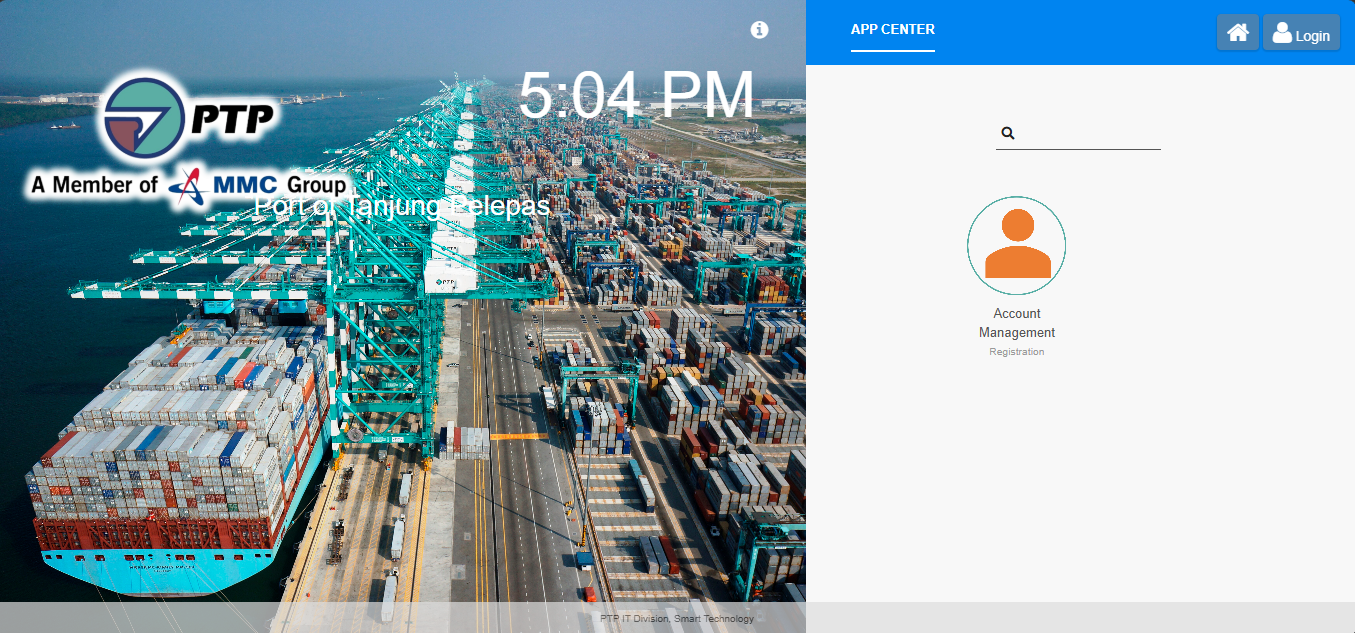
- Click the Login button.

or
- Navigate directly to:
https://workfx.ptp.com.my/jw/web/login
2. Request a Password Reset
On the login page, click Forgot Password link

A Forgot Password popup will appear.

Enter your Username and click Submit button.
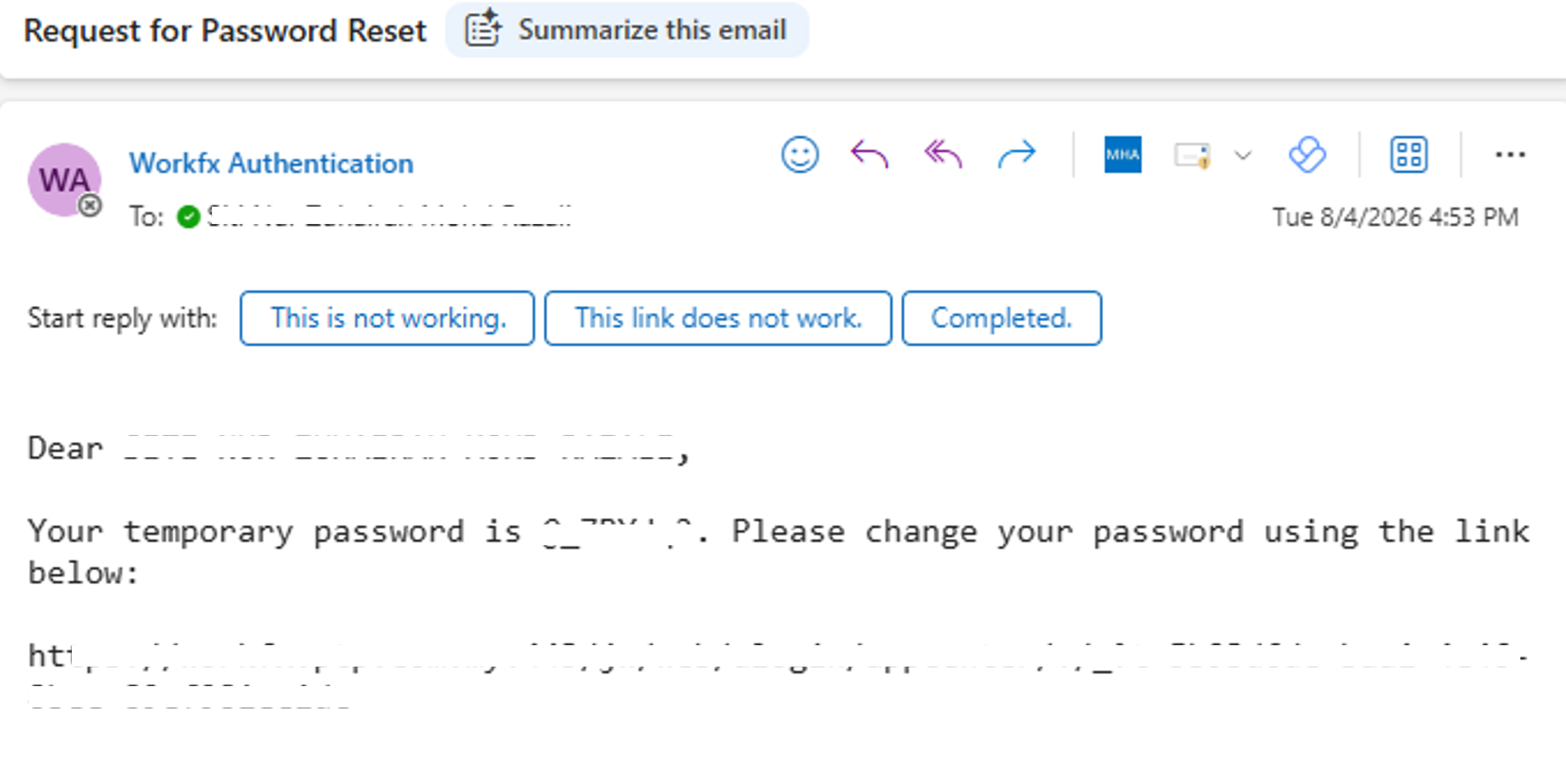
A password reset email containing a temporary password and password reset link will be sent to your registered email address.
3. Reset Your Password
- Open the password reset email.
- Click the password reset link. If the link does not open, copy and paste it into your browser and password reset paage will appear.
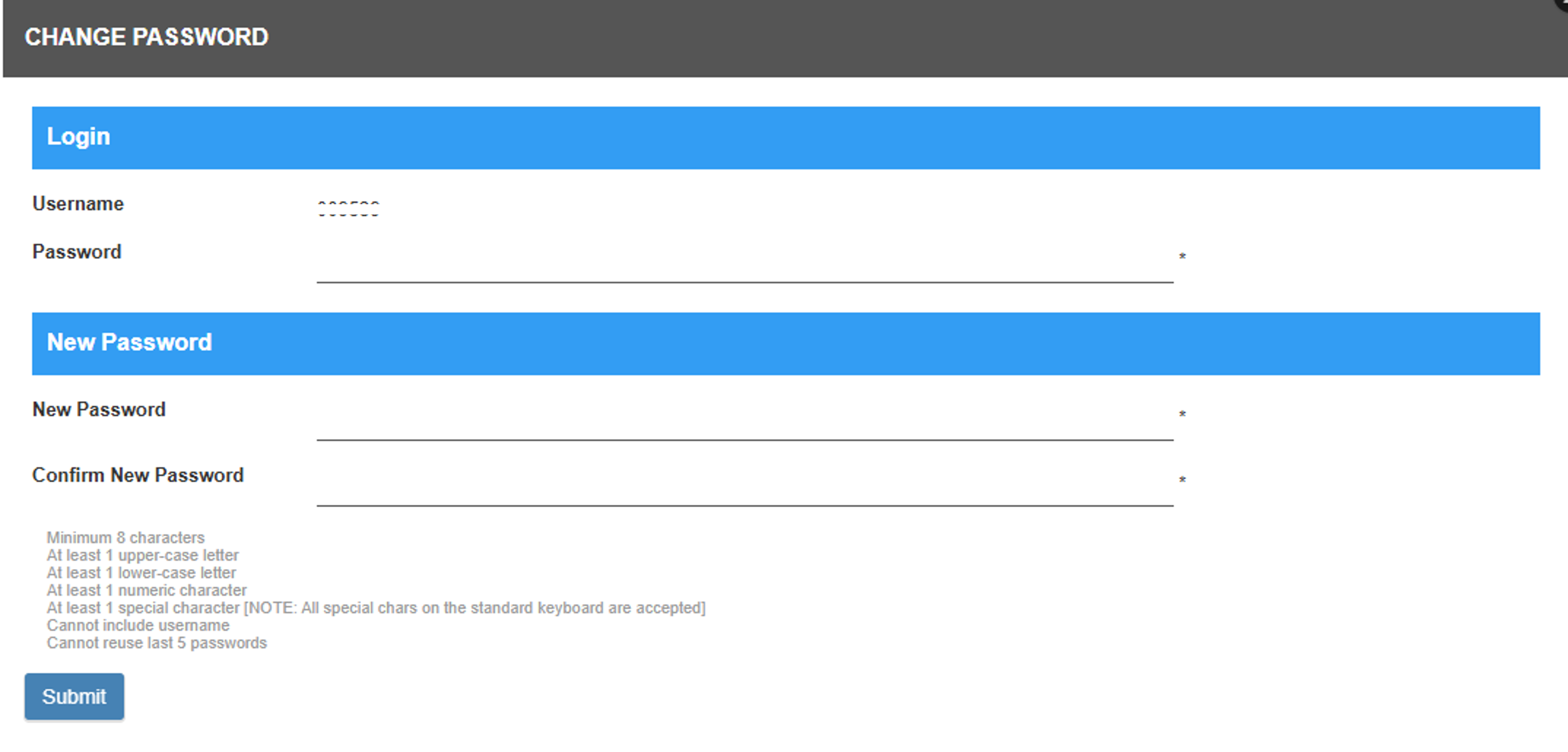
- Enter the Temporary Password provided in the email in the Password field.
- Enter your New Password and re-enter the same password in the Confirm Password field.
- Click Submit button.
If successful, your password will be updated. You can then log in using your new password.
Troubleshooting
| Issue | Solution |
|---|---|
| Forgot registered email address | Contact BO or Application Admin to update your email address. |
| Password reset email not received | Repeat the Forgot Password request and ensure the correct username is entered. |
| Temporary password is invalid | Ensure the temporary password is entered correctly as provided in the email. |
| Password reset failed | Ensure the new password meets the password policy and the confirmation password matches. |
| Forgot password link return invalid token | Repeat the Forgot Password request |
Related Guides
- Username & Password — Standard login