Multi-Factor Authentication (MFA) Login
To enhance account security, WorkFx uses One-Time Password (OTP) verification during login. After entering valid credentials, an OTP will be sent to your registered mobile number and/or email address for verification.
1. Log In to WorkFx
Sign in using your registered credentials.
- Internal User — Employee Number and Password
- External User — NRIC/Passport Number and Password
Refer to the Username & Password guide for more information.
2. OTP Verification Prompt
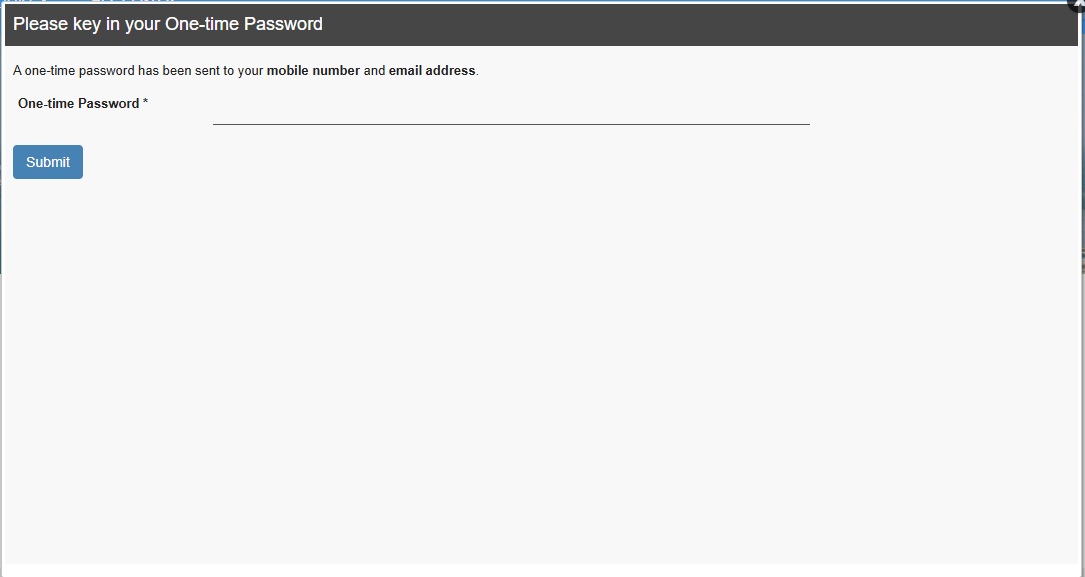
After successful credential verification, an OTP verification popup will be displayed.
3. Receive OTP
A 6-digit OTP will be sent to your registered contact information.
The system will attempt to send the OTP through:
- SMS to your registered mobile number

- Email to your registered email address
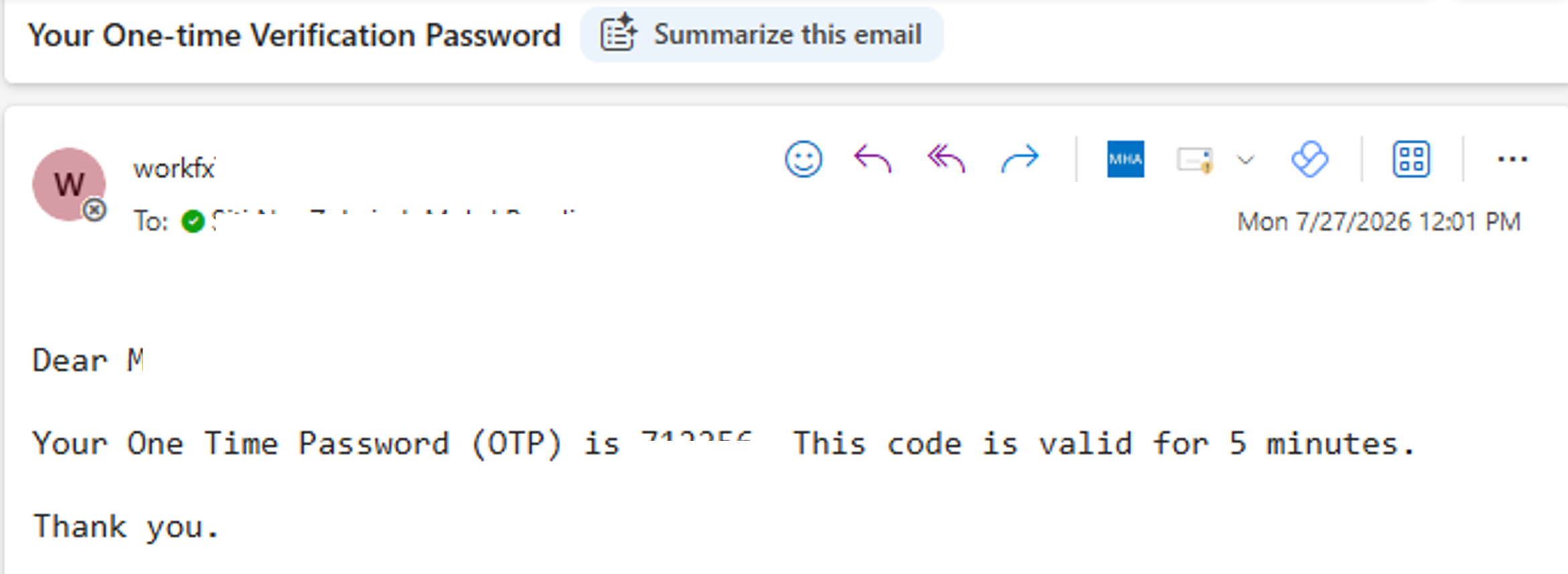
If SMS delivery is unsuccessful, the OTP will be sent via email only.
If email delivery is unsuccessful, the OTP will be sent via SMS only.
Check both your SMS inbox and email inbox for the OTP.
4. Enter OTP
Enter the 6-digit OTP received via SMS or email into the verification field.
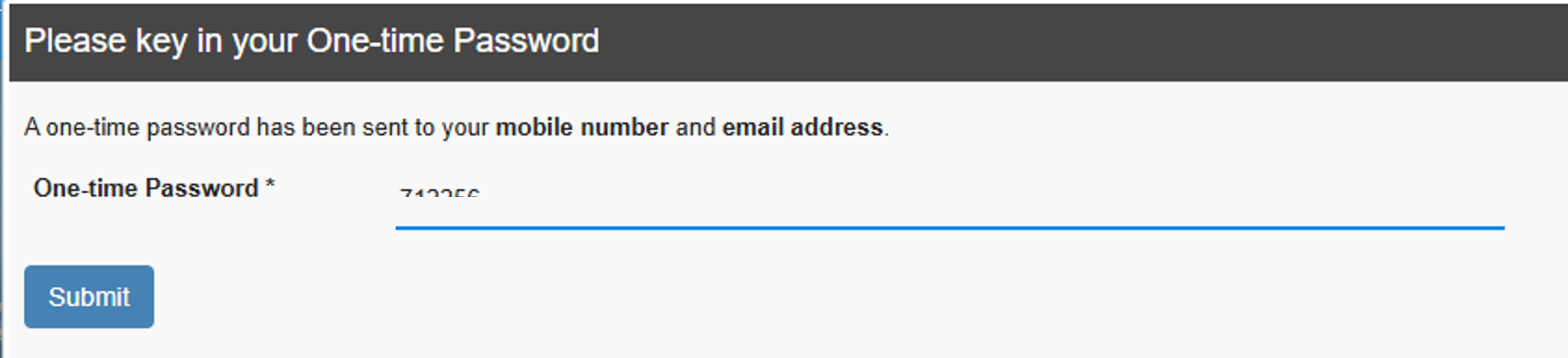
Click Submit button to verify the OTP.
If the OTP is valid, you will be successfully authenticated and redirected to the WorkFx homepage.
Troubleshooting
| Issue | Solution |
|---|---|
| OTP not received | Check both your SMS messages and email inbox, including Spam/Junk folders |
| OTP expired | Request a new OTP and enter the latest code received |
| Invalid OTP | Ensure the OTP entered matches the most recent OTP received |
| Mobile number changed | Update mobile number through Profile Update or contact administrator |
| Email address changed | Update email Profile Update or contact administrator |
Related Guides
- Username & Password — Standard login
- Registration — Register a new WorkFx account
- Profile Update — Update your profile