Multi-Factor Authentication (MFA) Setup
This guide explains how to activate Multi-Factor Authentication (MFA) for your WorkFx account.
MFA provides an additional layer of security by requiring a One-Time Password (OTP) verification during login. The OTP will be sent to the registered mobile number and email address associated with your account.
1. Login to WorkFx
Navigate to the WorkFx system:
Login using your registered credentials.
2. Open User Profile
After successful login:
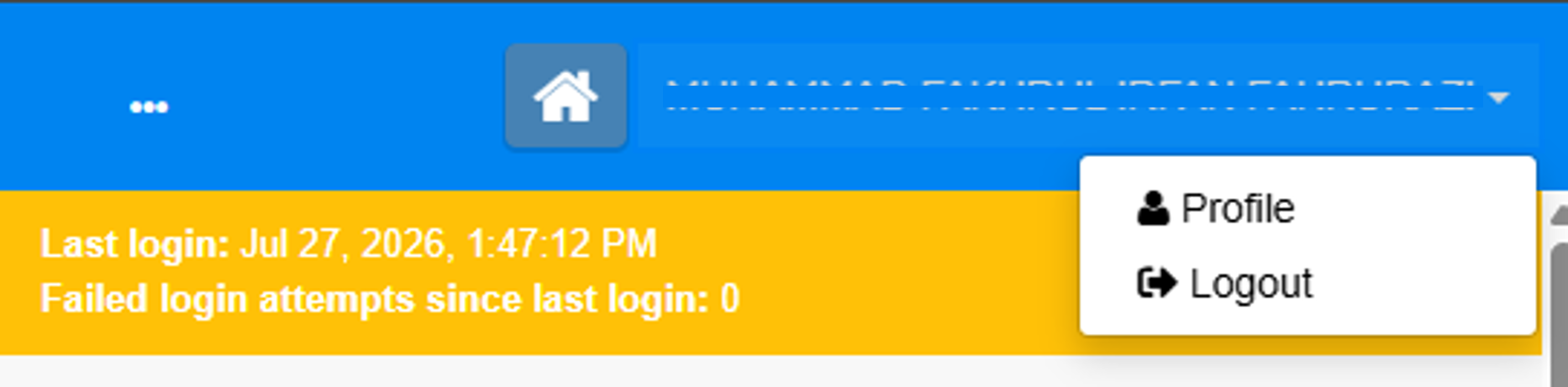
- Click your Full Name displayed on the top menu.
- A dropdown menu will appear.
- Click Profile.
The user profile page will be displayed.
3. Activate Multi-Factor Authenticator
On the Profile page, scroll down to the bottom of the form.
Locate the Multi-Factor Authenticator section.
Click the Activate button to start the MFA activation process.

4. Verify Mobile Number
The system will check whether a mobile number is available for your account.
If Mobile Number Exists
If your account already has a registered mobile number, you can proceed directly to OTP verification.
If Mobile Number Does Not Exist
If no mobile number is registered, the system will prompt you to enter your mobile number.
Enter your mobile number and click Continue.
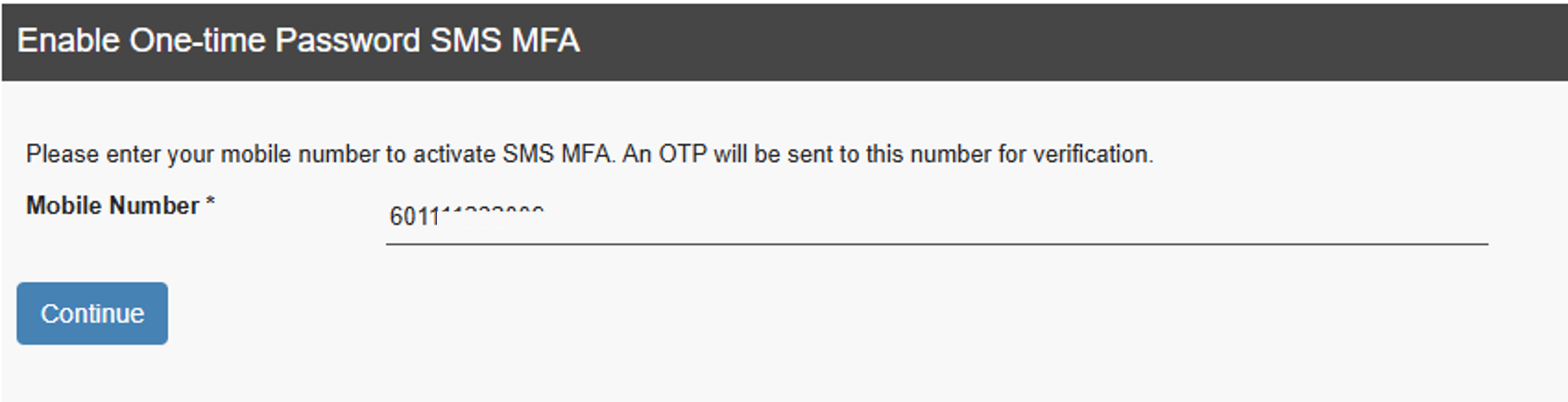
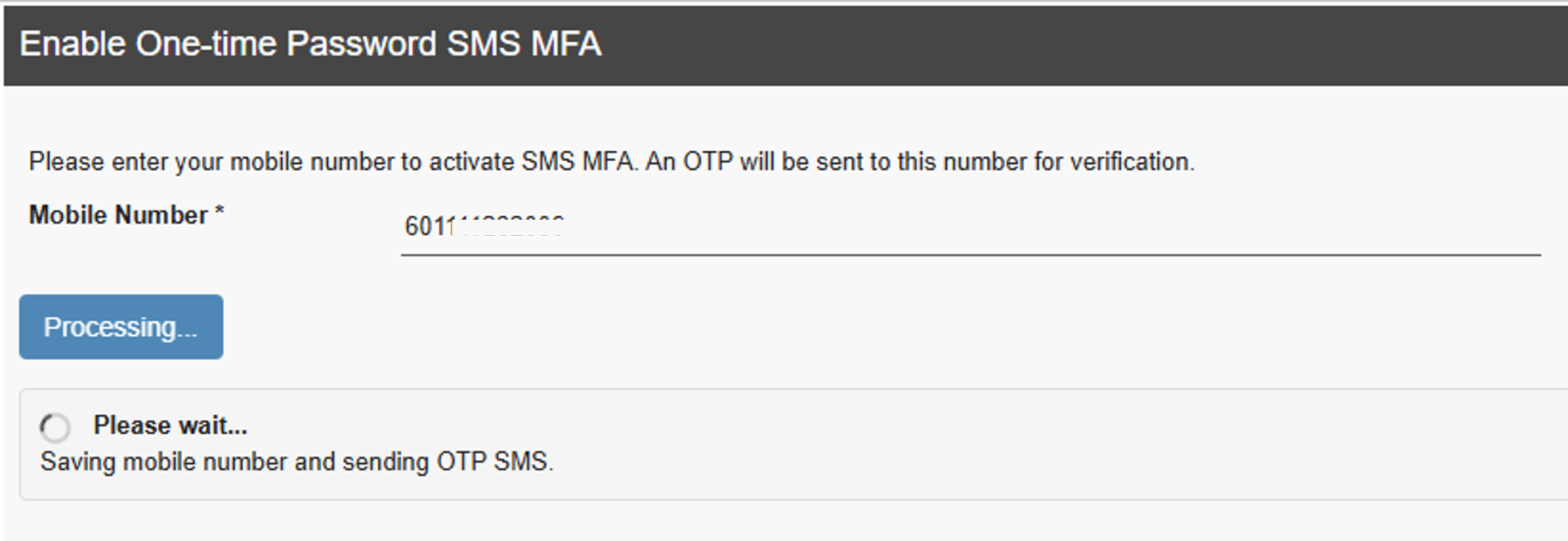
The system will save the mobile number to your account. Please wait until the process is completed before proceeding to OTP verification.
5. Verify OTP Code
After submitting the mobile number (if required), the system will display the OTP verification page within the popup.
The OTP will be sent to:
- Registered mobile number (SMS)
- Registered email address
Enter the OTP code received.

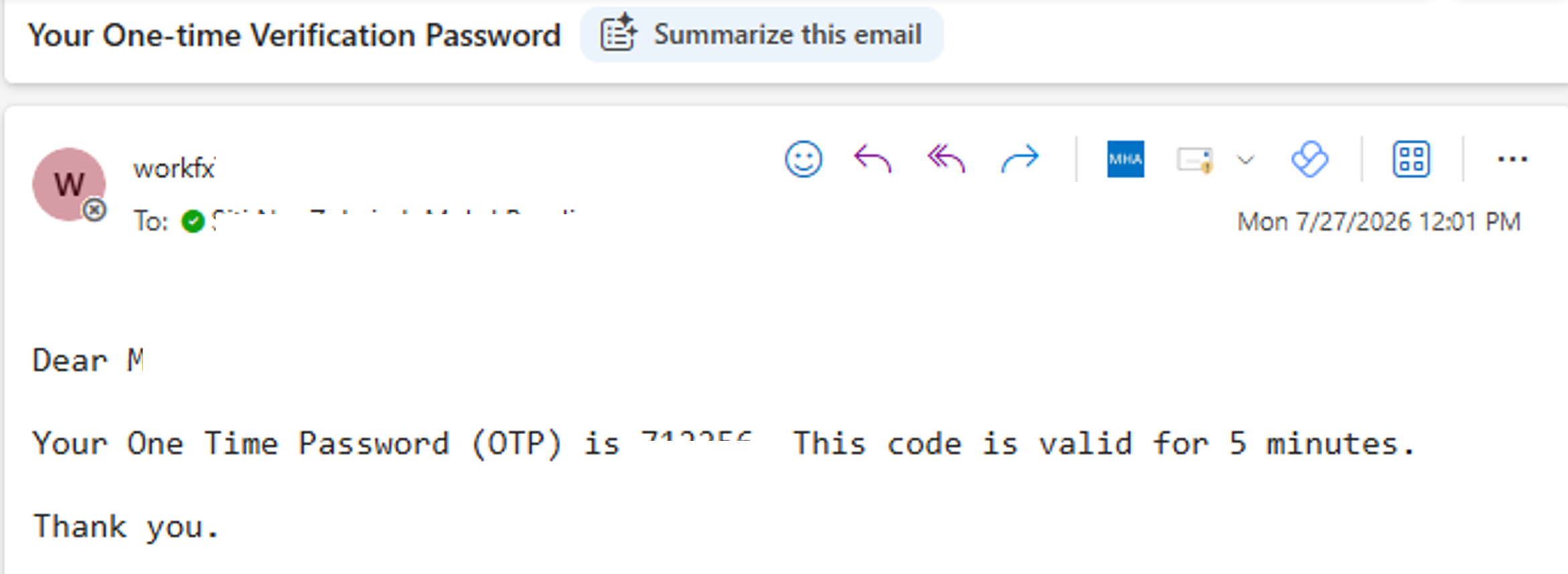
If the OTP is not received, check both your SMS inbox and email inbox, including the Spam/Junk folder.
6. Confirm MFA Activation
After successful OTP verification, the popup will be closed, allowing you to continue viewing the Profile page.
To complete the MFA activation:
- Enter your current password in the Current Password field.
- Click Save.
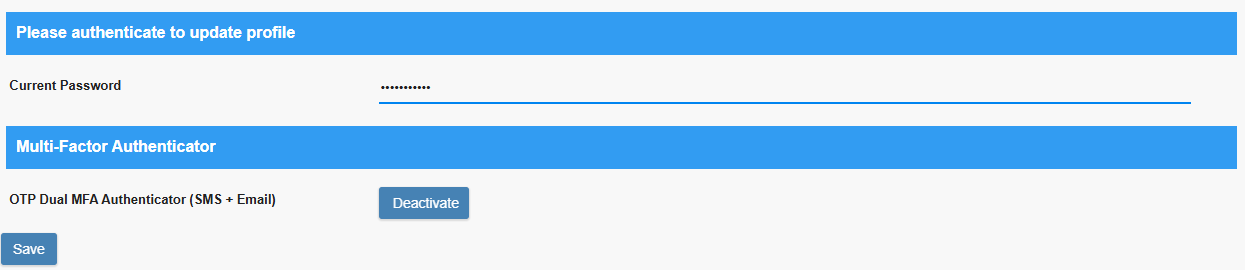
The profile will not be updated if the current password is not provided or is incorrect.
7. Successful MFA Activation
After successful validation:
- MFA will be activated for your WorkFx account.
- Future login attempts may require OTP verification.
- The OTP will be sent to your registered mobile number and email address.
Troubleshooting
| Issue | Solution |
|---|---|
| Activate button not available | Ensure you are logged in and access the Profile page |
| Mobile number not registered | Enter your mobile number during MFA activation |
| OTP not received | Check SMS and email inbox, including Spam/Junk folder |
| Incorrect OTP | Enter the latest OTP received |
| Profile not saved | Enter your current password before clicking Save |
| MFA activation failed | Contact the WorkFx Administrator |
Related Guides
- Username & Password — Standard login
- OTP Verification — Login OTP verification process
- Update Profile — Update your email address and mobile number