Username & Password
Standard login using your registered credentials to access the WorkFx platform.
1. Open the Login Page
Navigate to the WorkFx system:
You will be redirected to the WorkFx homepage.
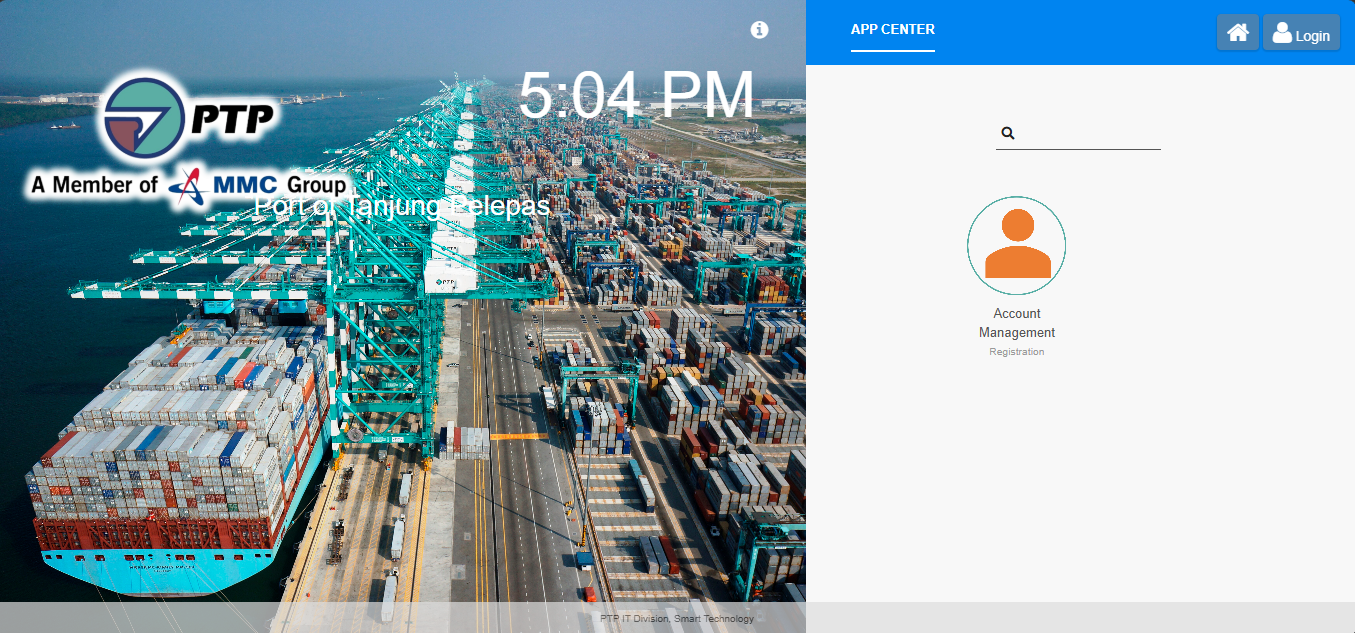
You can access the login page by either:
- Clicking the Login button on the WorkFx homepage, or
- Navigating directly to https://workfx.ptp.com.my/jw/web/login
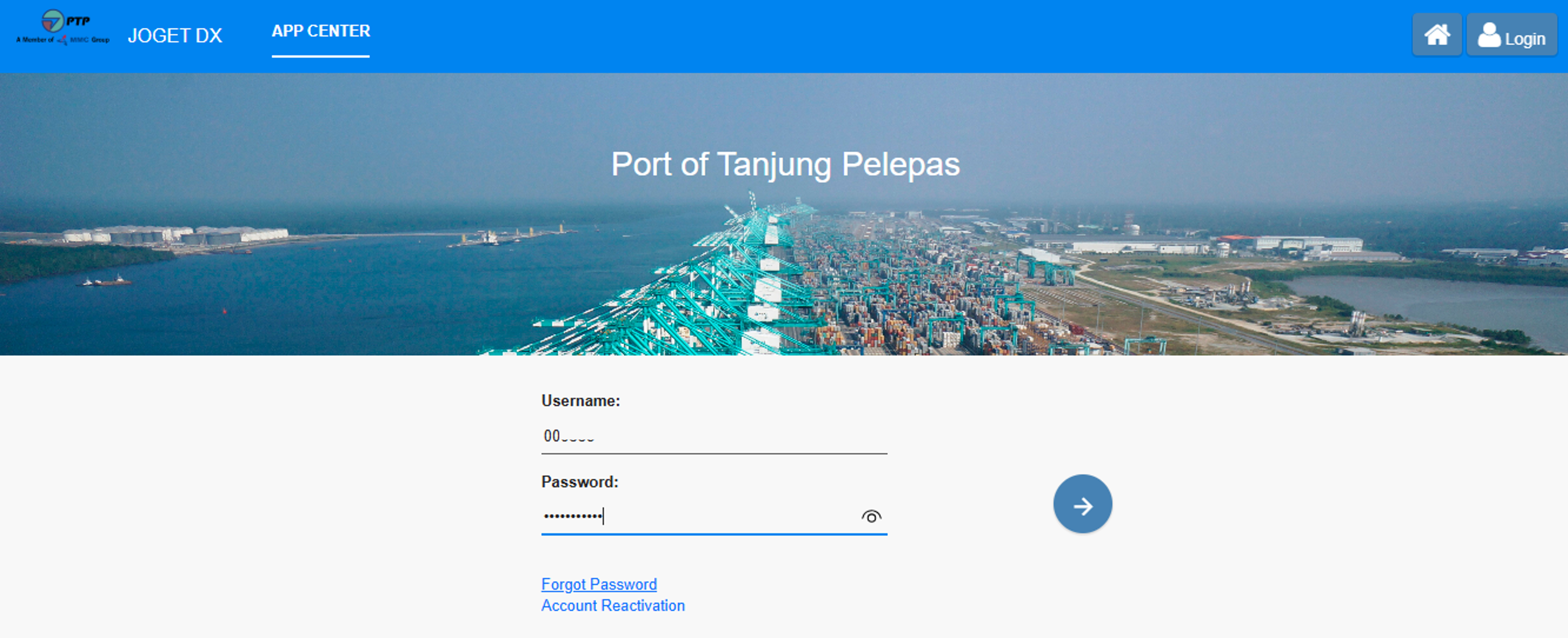
The WorkFx login page will then be displayed.
2. Enter Your Credentials
Enter your login credentials based on your account type and click the Sign In button.
| Account Type | Username |
|---|---|
| Internal User | Employee Number |
| External User | NRIC or Passport Number used during registration |
| Field | Description |
|---|---|
| Username | Employee Number (Internal) or NRIC/Passport Number (External) |
| Password | Your account password |
3. First-Time Login (Password Change)
If this is your first login, you will be required to change your password before accessing the system.
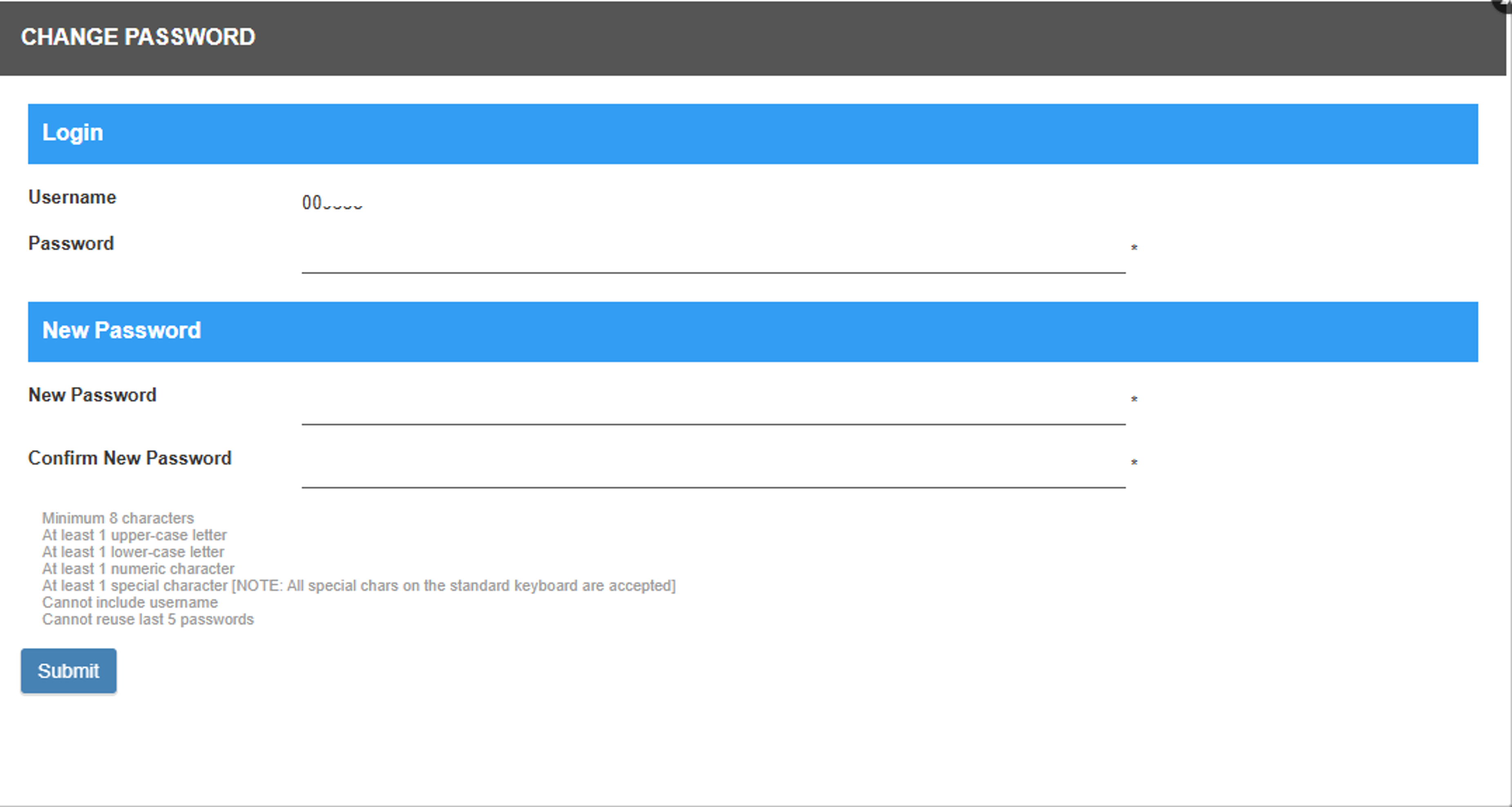
Enter the following information:
| Field | Description |
|---|---|
| Password | Temporary password received via SMS |
| New Password | Create a new password that meets the password policy |
| Confirm New Password | Re-enter the new password |
Click Submit to save your new password.
Upon successful password change, you will be automatically signed in to WorkFx and redirected to the WorkFx homepage. No additional login is required.
The temporary password sent via SMS can only be used for the first login.
4. Multi-Factor Authentication (MFA)
If Multi-Factor Authentication (MFA) is enabled for your account, you will be prompted to verify your identity using a One-Time Password (OTP).
Refer to the next guide for the MFA verification process.
➡️ Next Guide: MFA OTP
5. Successful Login
After successful authentication, you will be redirected to the WorkFx home page, where you can access the applications assigned to your account.
Troubleshooting
| Issue | Solution |
|---|---|
| Incorrect username or password | Verify your credentials and try again. If you have forgotten your password, use the Forgot Password option. |
| Temporary password not working | Ensure you are using the latest temporary password received via SMS. |
| Password change failed | Ensure the new password meets the password policy and that both password fields match. |
| Account locked | Contact the WorkFx Administrator for assistance. |
| MFA verification required | Complete the OTP verification as described in the MFA OTP guide. |
Next Steps
- MFA OTP — Complete Multi-Factor Authentication (OTP)