Registration
This guide explains the steps to register a new WorkFx account. Users without an existing WorkFx account must complete the registration process before accessing WorkFx applications.
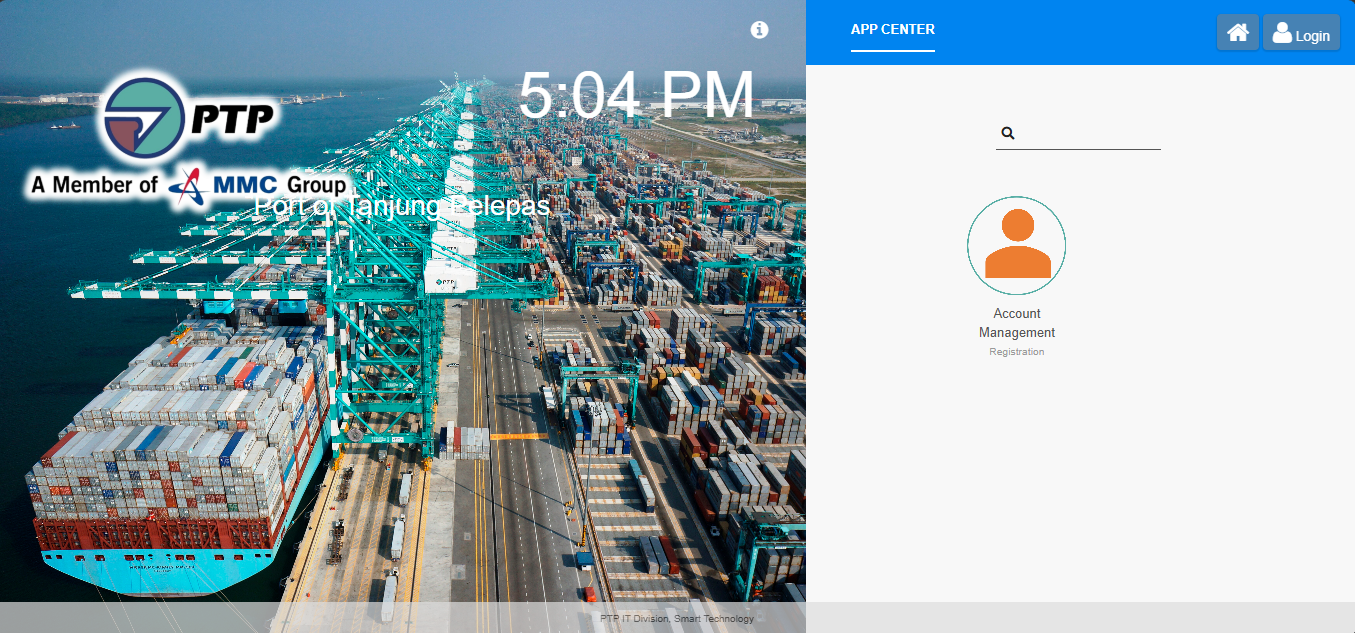
1. Open the WorkFx Homepage
Navigate to the WorkFx system using your browser:
WorkFx URL:
https://workfx.ptp.com.my
You will be redirected to the WorkFx homepage.
2. Open Account Management
From the WorkFx homepage, click Account Management to start the registration process.

3. Complete Registration Form
Select the appropriate Requestor Type based on your account category.

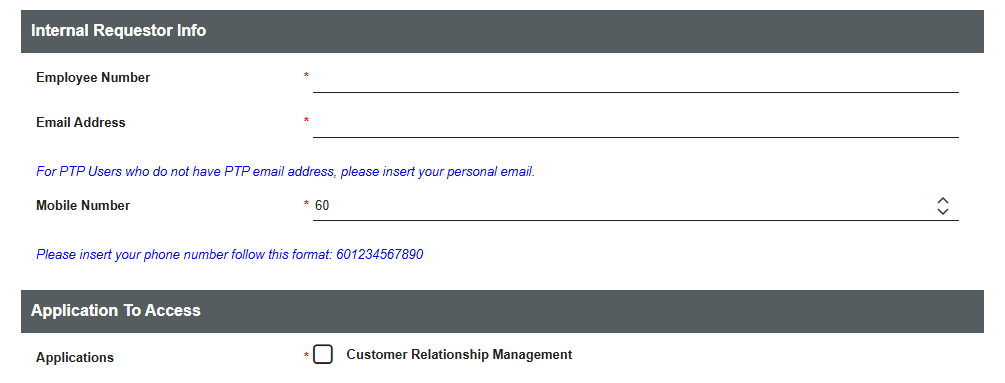
Internal User (PTP / MESB)
Select Internal if you are a PTP or MESB employee.
Fill in the required information:
| Field | Description |
|---|---|
| Employee Number | Your registered PTP/MESB employee number (Example: 000000/M00000) |
| Email Address | Your active email address. A verification email will be sent to this address |
| Mobile Number | Your Malaysian mobile number using country code format (Example: 60123456789) |
| Applications | Select the WorkFx applications you require access to |
External User
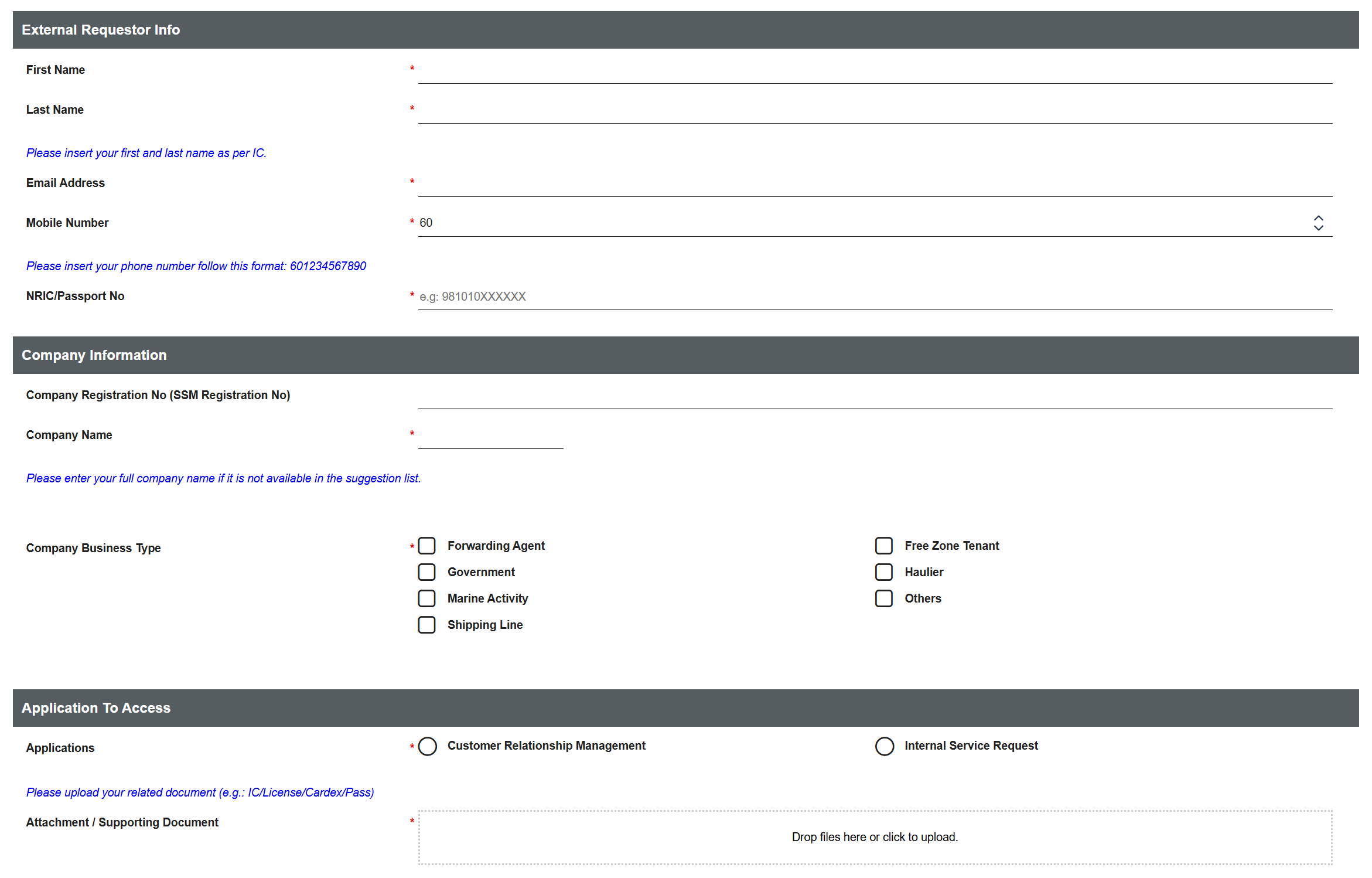
Select External if you are a vendor, contractor or third-party user.
Fill in the required information:
| Field | Description |
|---|---|
| First Name | Your first name according to official identification |
| Last Name | Your last name according to official identification |
| Email Address | Your active email address. An activation email will be sent to this address |
| Mobile Number | Your Malaysian mobile number using country code format |
| NRIC / Passport Number | Your identification number |
| Company Registration Number | Your company SSM registration number (if applicable) |
| Company Name | Your registered company name |
| Business Type | Select your company's business category |
| Applications | Select the WorkFx applications you require access to |
| Attachments | Upload required supporting documents such as IC, license, cardex, or pass |
Validation Rules
Internal User
The following validation rules apply:
- Employee Number must be a valid registered employee number
- Email Address must be in a valid email format and not already registered
- Mobile Number must start with
60 - At least one application must be selected
External User
The following validation rules apply:
- First Name is required
- Last Name is required
- Email Address must be in a valid email format and not already registered
- Mobile Number must start with
60 - NRIC / Passport Number is required
- Company Name is required
- At least one Business Type must be selected
- At least one application must be selected
- Supporting attachment must be uploaded
4. Submit Registration Request
After completing all required information, click the Submit button.
A notification message will appear after your registration request has been submitted successfully.
- Users requesting Safety Induction access will be required to complete email OTP verification.
- Users requesting other applications will proceed automatically without email verification.
5. Email Verification (Safety Induction Users Only)
Email verification is required only for users who request access to the Safety Induction application.
A verification email will be sent to your registered email address.
The email contains:
- Verification link
- OTP code
If you do not receive the email within 5 minutes:
- Check your Spam/Junk folder
- Confirm that your email address is correct
- Register again using the correct email address
- Contact the system administrator if the issue persists
6. Complete Verification
Safety Induction Users
Enter the OTP code received in your email and click the Complete button.
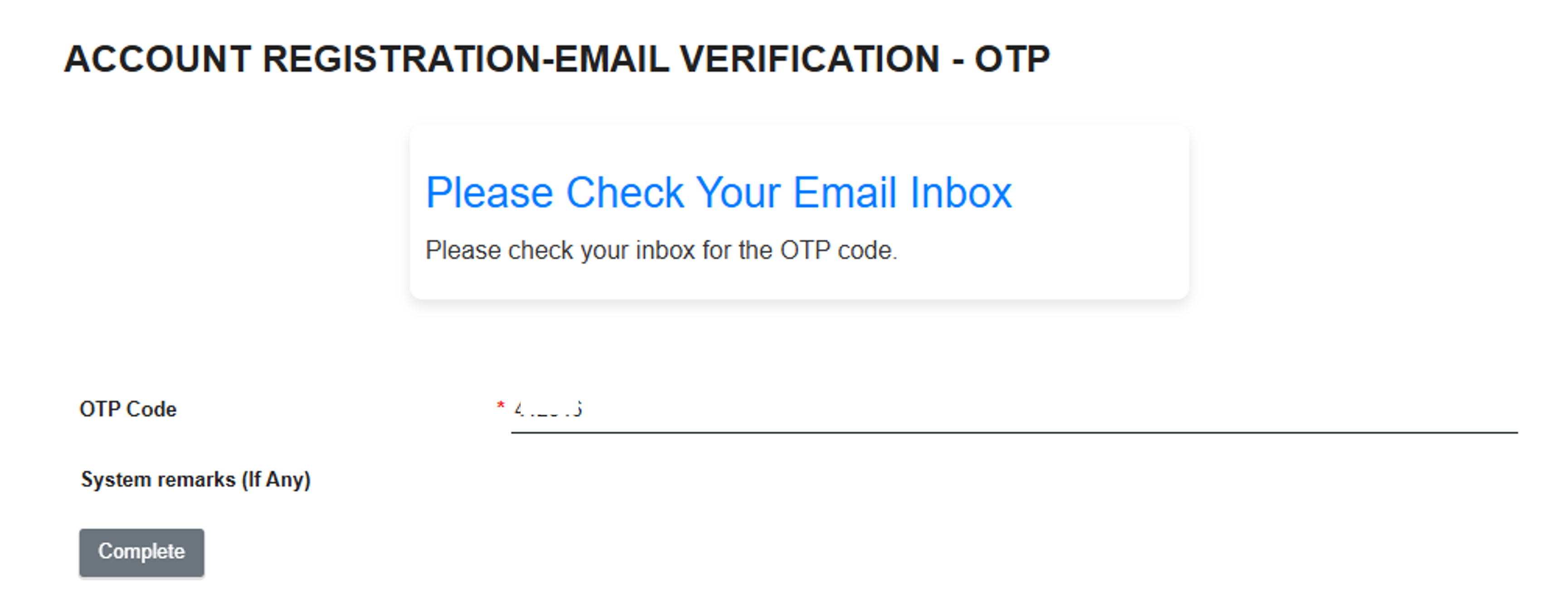
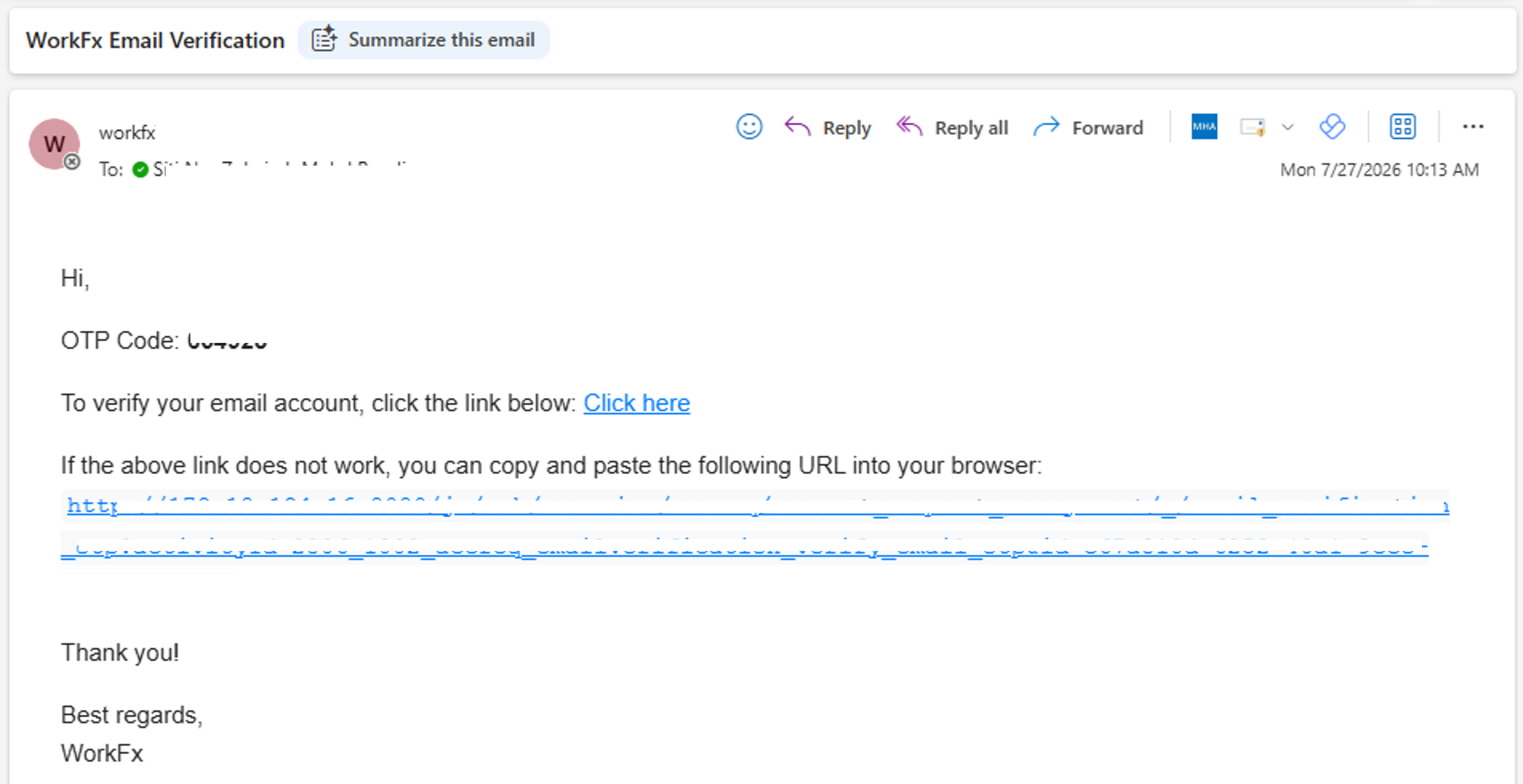
Note: The verification email also contains a verification link. You can use this link to return to the OTP verification page if you accidentally close the page or need to complete the verification later.
A valid OTP will complete the email verification process.
A new OTP will be generated if an incorrect or expired OTP is entered.
Other Application Users
For users who do not select the Safety Induction application, email verification is not required.
After submitting the registration request, you will be redirected automatically to the next page.
Internal User
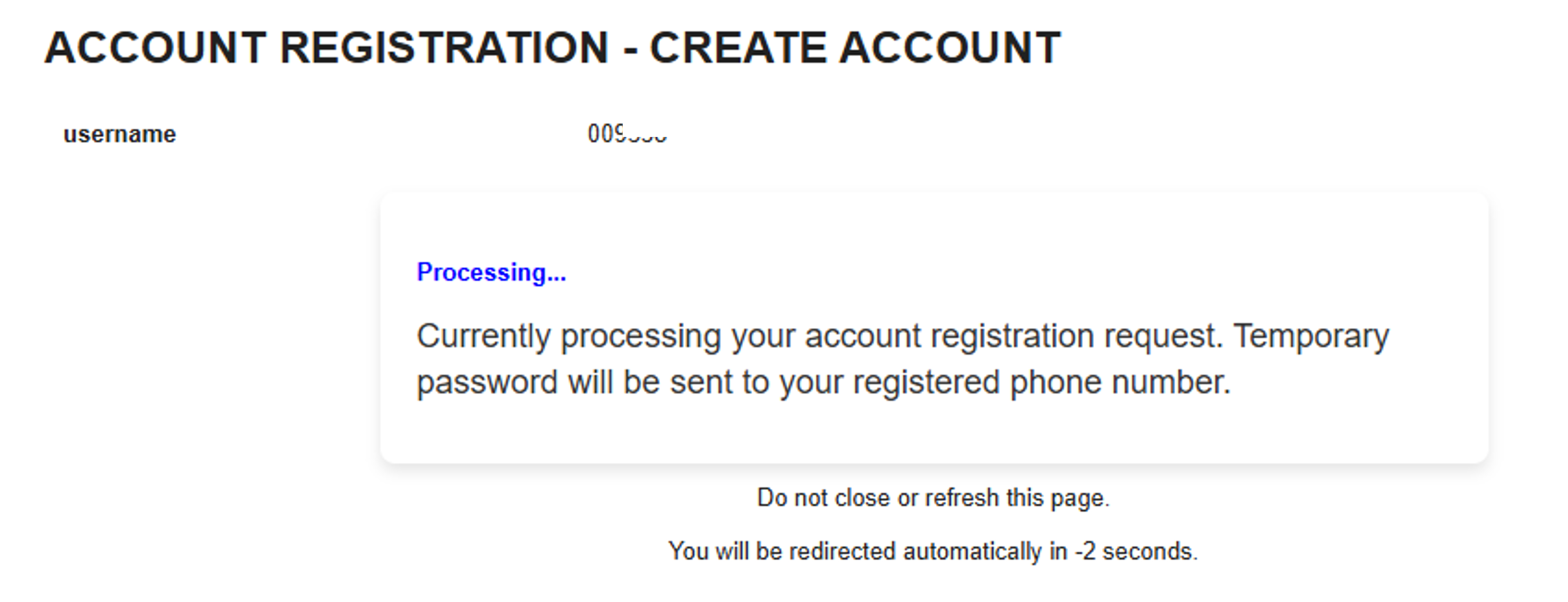
The temporary credentials will be sent to your registered mobile number
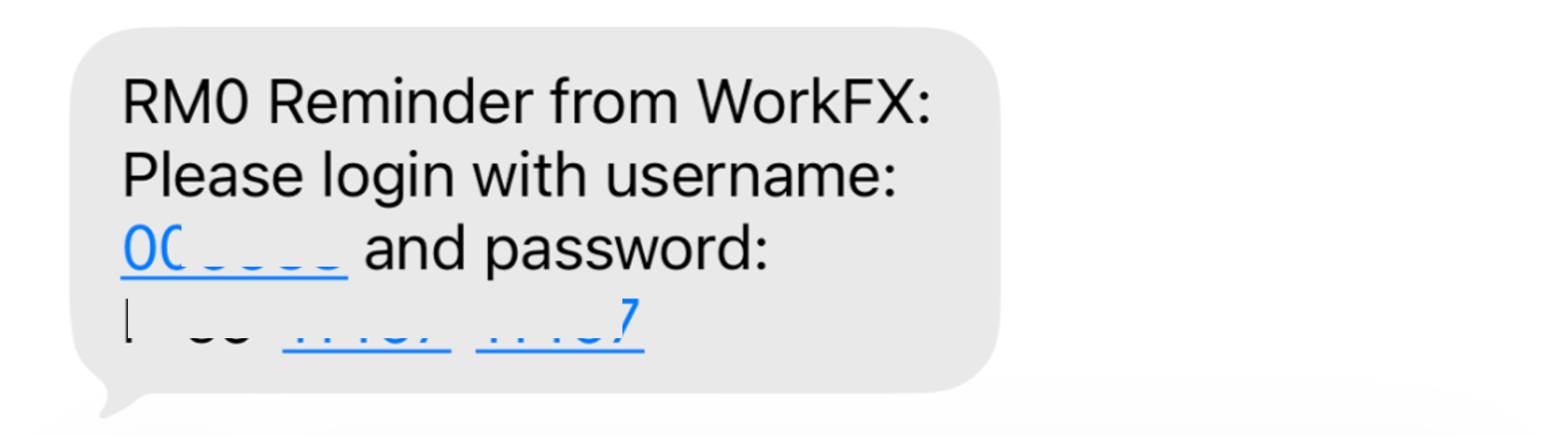
If you do not receive the SMS for temporary credentials within 5 minutes:
- Go to WorkFx login page and do forgot password
External User
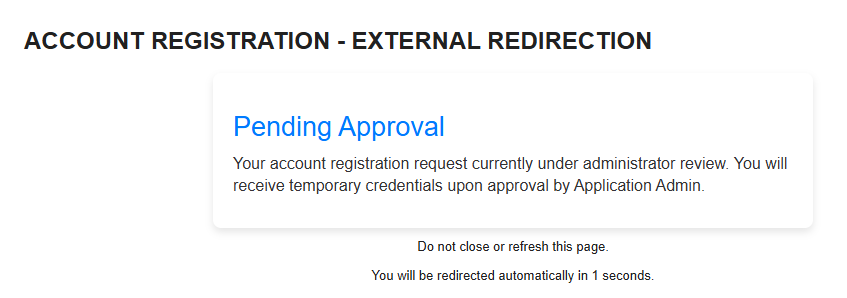
The temporary credentials will be sent to your registered mobile number after your registration request has been approved by application admin.
7. Login to WorkFx
After successful verification and account approval:
- Open the WorkFx login page
- Enter your username
- Enter your password
- Complete MFA verification if required
Your WorkFx account is now ready to use.
Troubleshooting
| Issue | Solution |
|---|---|
| Verification email not received | Check Spam/Junk folder or contact administrator |
| OTP expired | Request a new OTP |
| Email already registered | Use existing account to log in or contact administrator |
| Unable to login | Verify username, password and MFA status |
| Registration rejected | Ensure all information and documents are correct |
Related Guides
- Username & Password — Standard login guide