Update Profile
This guide explains how to update your WorkFx profile information, including your registered email address and mobile number.
Users can update their profile information through two scenarios:
| User Type | Verification Required | Existing Information Display |
|---|---|---|
| Logged-in User | No additional verification required | Existing email and mobile number will be displayed |
| Non-Logged-in User | Username and password verification required | Existing information will not be displayed before verification |
Keeping your profile information updated ensures you continue receiving authentication OTPs and important system notifications.
1. Open Account Management
Navigate to the WorkFx homepage:
From the homepage, click the Account Management logo.

2. Open Update Profile
From the Account Management menu:
- Click Update Profile from the left-side menu
or
- Navigate directly to:
https://workfx.ptp.com.my/jw/web/userview/accreq/account_request_management/_/update_profile

For Logged-in Users
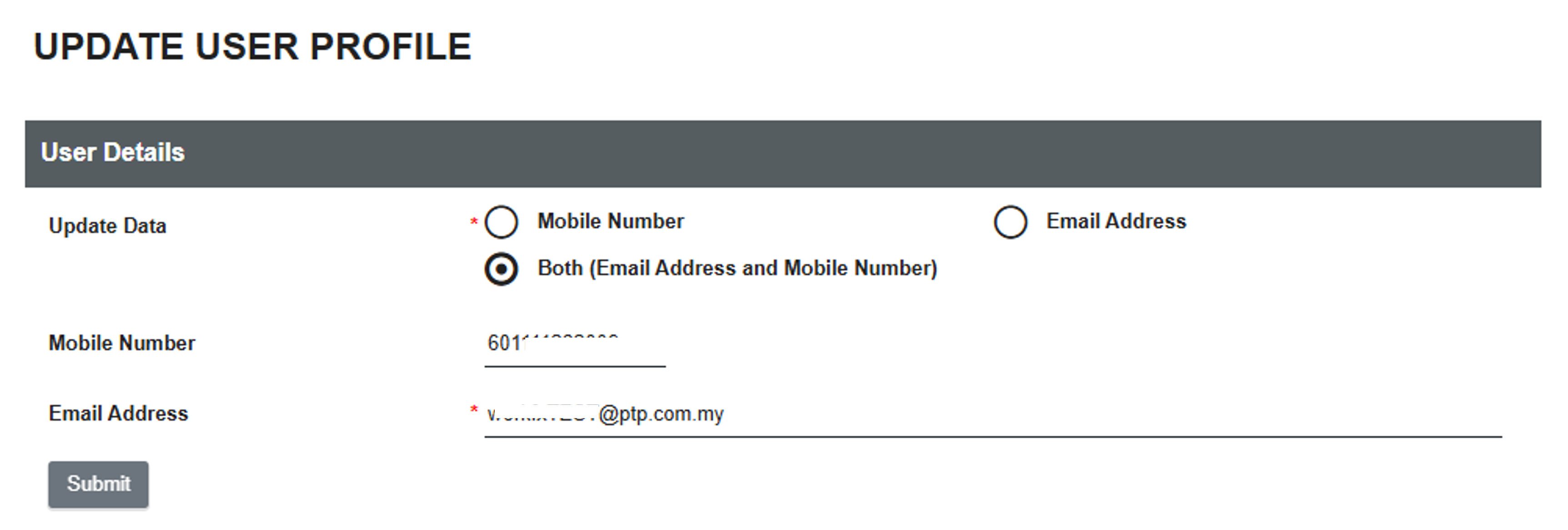
The Update Profile page will be displayed with your existing registered email address and mobile number.
For Non-Logged-in Users
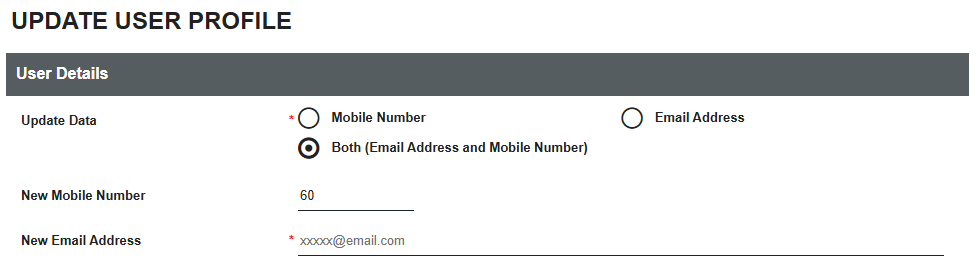
The Update Profile page will be displayed with empty fields.
3. Select Information to Update
On the Update Profile page, select the information you want to update:
- Email Address
- Mobile Number
- Email Address and Mobile Number
4. Verify Account Credentials
This verification step is only required for users who access the Update Profile page without being logged in.
Enter your WorkFx credentials:
| Field | Description |
|---|---|
| Username | Your registered WorkFx username |
| Password | Your current WorkFx password |

Click Submit to proceed.
Logged-in users can skip this step because their account identity has already been verified.
5. Profile Update Validation
The system will validate the submitted information before applying the changes.
The following validation rules apply:
| Field | Validation |
|---|---|
| Email Address | Must be a valid email format and cannot already exist in the system |
| Mobile Number | Must use a valid mobile number format and cannot already exist in the system |
| Username | Must match the registered account (Non-logged-in users only) |
| Password | Must be correct before profile update is allowed (Non-logged-in users only) |
6. Failed Verification Attempt
If an incorrect username or password is entered:
- The failed attempt will be recorded by the system.
- After 3 unsuccessful attempts, your account will be temporarily locked.
- Profile updates cannot be performed while the account is locked.
Once the account lock period has ended, you may try again to update your profile information.
Contact the WorkFx Administrator if you require assistance with an account lock issue.
7. Successful Profile Update
After successful validation, your profile information will be updated.
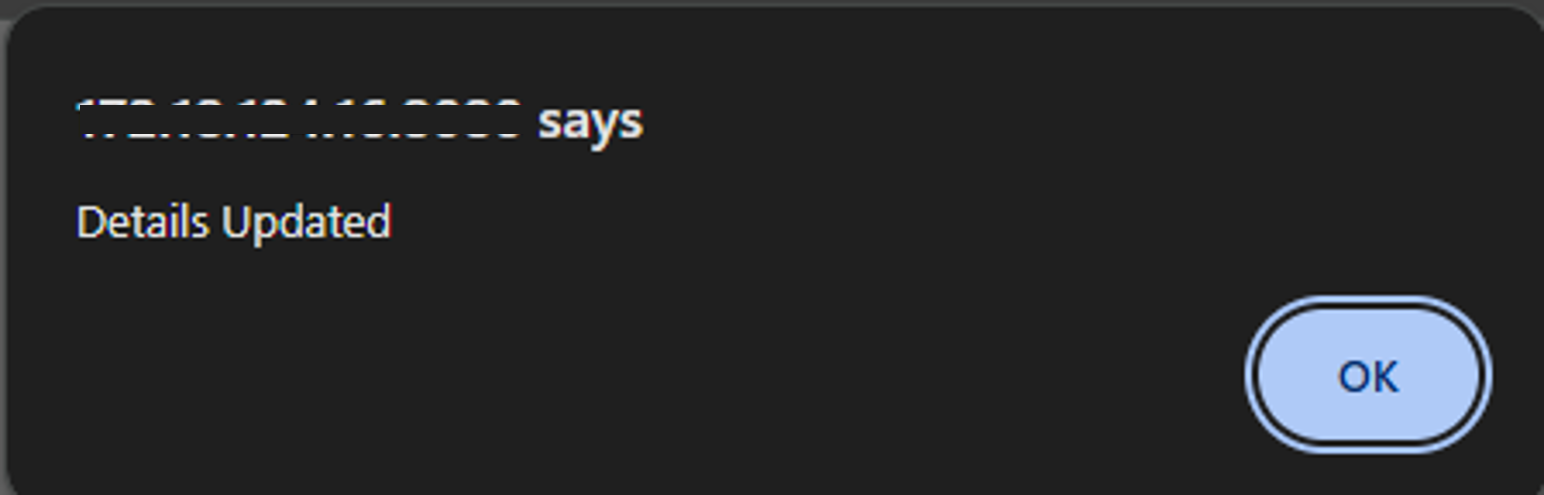
A confirmation message will be displayed indicating that your update request has been completed successfully.
8. Verify Updated MFA Contact
After updating your email address or mobile number:
- Return to the WorkFx login page.
- Login using your updated credentials.
- Complete the OTP verification process.
The MFA OTP will be sent to your updated:
- Mobile number (SMS)
- Email address
Troubleshooting
| Issue | Solution |
|---|---|
| Email already exists | Use another email address that is not registered in WorkFx |
| Mobile number already exists | Use another mobile number that is not registered in WorkFx |
| Incorrect username/password | Verify your credentials and try again |
| Account locked | Wait until the lock period expires or contact administrator |
| OTP sent to old contact details | Ensure your profile update was completed successfully before retrying login |
Related Guides
- Username & Password — Standard login
- OTP Verification — Complete MFA verification
- Forgot Password — Reset your password